

Posted on

How to Automatically Record Every Phone Call in 2026

Woman with headset at computer recording calls - Automatically record every phone call with RECAP

If you need to automatically record phone calls — every one, not just the ones you remember to tap “Record” on — your options are more limited than you think. This guide covers every method for automatic call recording on Android, iPhone, and landline.

The Problem: Manual Recording Misses Calls

Both Google Pixel and Samsung Galaxy now offer built-in call recording, and Apple has added it to the iPhone. But all three share the same limitation: you have to manually tap “Record” on every single call.

That means: – You forget to record an important call, and it’s gone forever – You can’t record calls you don’t expect to be important (they often are) – If you’re recording for compliance, legal, or business reasons, manual recording creates gaps

For anyone who needs consistent, automatic recording of every call, manual tap-to-record is not a real solution.

Option 1: Android Apps with Auto-Record (Limited)

Some third-party Android apps claim to offer automatic call recording:

Cube ACR is available on the Google Play Store and has an auto-record setting that triggers recording when a call starts. However: – On current Android versions, it typically only records your side of the conversation due to OS-level restrictions Google has tightened with every recent Android version – Functionality varies significantly by phone manufacturer and Android version – Google can break it with any system update – Audio quality is inconsistent — some devices produce garbled or one-sided recordings

Samsung and Xiaomi phones in certain regions have auto-record settings in their native dialer apps. But: – Region-locked — not available in the US, UK, or EU – Still plays a notification announcement to the other party – Only works on the manufacturer’s built-in phone app

Bottom line: There is no reliable way to auto-record both sides of every call using software alone on a modern Android phone.

Option 2: Google Voice (Incoming Calls Only)

Google Voice can record incoming calls — press 4 during the call. But: – Outgoing calls cannot be recorded – You still have to press 4 manually each time – There is no true auto-record feature – Both parties hear a notification announcement

Google Voice is not a solution for automatic recording.

Option 3: iPhone — No Auto-Record Option

Apple’s iPhone call recording must be activated manually on each call. There is no auto-record setting, no Shortcut automation for it, and no third-party app can do it either. iOS has never allowed background call recording by apps, and there is no indication this will change.

Option 4: Hardware Adapter + Voice-Activated Recorder

This is the only method that reliably auto-records every call on any phone — Android, iPhone, or landline — with no apps, no batteries, and no subscriptions.

How It Works

RECAP S2 is a hardware audio adapter that sits between your phone and a wired headset. It passes the full audio from both sides of the call to a recording device. Pair it with a voice-activated recorder (VAR), and you get true automatic recording:

  1. RECAP S2 connects to your phone (via 3.5mm jack or USB-C/Lightning adapter)
  2. Your wired headset plugs into RECAP S2 — you talk and listen normally
  3. RECAP S2’s output goes to a digital voice recorder set to voice activation mode
  4. When a call starts, the recorder detects audio and starts recording automatically
  5. When the call ends, the recorder stops automatically after a few seconds of silence

No buttons to press. No apps to open. Every call recorded, both sides, clear audio.

What You Should Know About This Setup

RECAP S2 is a passive audio adapter, not a standalone recording device. To use it, you need:

  • A wired headset — Bluetooth headsets will not work. The audio passes through the physical cable.
  • A phone with a 3.5mm headphone jack, or a USB-C/Lightning to 3.5mm adapter for phones that lack one. Not all adapters work — see our adapter compatibility guide for tested options.
  • A separate recording device — either a digital voice recorder or a computer with recording software.

These requirements are the trade-off for getting reliable, OS-independent, two-sided recording that no software solution can match.

Best Voice-Activated Recorders for This Setup

Any digital voice recorder with a “VOR” (Voice Operated Recording) or “voice activation” feature works. Here are proven options:

  • Sony ICD-UX570 — Compact, excellent audio quality, voice activation mode, USB charging, (check current pricing as it varies by retailer)
  • Olympus WS-882 — Reliable voice activation (VOR), stereo recording, USB direct connection, simple operation
  • Zoom H1n — Higher-end audio quality, great for professional recording and transcription
  • Any recorder with a 3.5mm mic/line input and voice activation mode

For a deeper look at recorder options and setup tips, see our guide on recording phone calls with a digital voice recorder.

Using a PC as Your Recorder

If you work at a desk, you can use your computer instead of a dedicated recorder:

  1. Connect RECAP S2’s output to your PC’s microphone input (or use a USB audio adapter if your PC only has USB-C — see our adapter guide for recommendations)
  2. Use recording software with auto-start:
    • Audacity (free) — Use the “Sound Activated Recording” feature under Transport menu. Set the activation threshold just above your room’s background noise level.
    • OBS Studio (free) — Can be scripted to start/stop recording based on audio input levels
    • Windows Voice Recorder / Mac Voice Memos — Simple but lack auto-start; you’d need to press record manually

See our guide on recording phone calls to your computer for detailed PC setup instructions, and our comparison of the best recording software for PC for help choosing the right tool.

Why Hardware Auto-Recording Works When Software Doesn’t

RequirementSoftware SolutionsRECAP S2 + Voice-Activated Recorder
Records both sidesUsually only your sideYes — always
Truly automaticRequires manual tapYes — voice activation
Works on all phonesDevice/region dependentYes — any phone with headset
No notification to other partyBuilt-in always notifiesNo notification
Survives OS updatesBreaks frequentlyHardware — nothing to break
Works offlineSome need internetYes — fully offline
Ongoing costSome apps require subscriptionNo subscription — buy once

Setting Up Auto-Recording: Step by Step

What You Need

  • RECAP S2 audio adapter ($99 — one-time purchase, no subscription)
  • A wired headset with 3.5mm TRRS plug
  • A voice-activated recorder (digital voice recorder with VOR mode, or a PC with Audacity)
  • If your phone lacks a 3.5mm jack: a USB-C or Lightning to 3.5mm adapter — see our adapter compatibility guide

Configuration

  1. Connect everything: Phone -> adapter (if needed) -> RECAP S2 -> headset + recording device
  2. Enable voice activation on your recorder:
    • Digital voice recorder: Look for VOR/VAR mode in settings. Set sensitivity to medium or high.
    • Audacity: Transport > Sound Activated Recording. Set threshold to -26dB to -30dB (adjust based on your environment).
  3. Test with a short call. Call a friend, verify both sides are captured, and adjust the voice activation sensitivity if it’s cutting off the beginning of speech.
  4. Leave it connected. From now on, every call you make or receive through your headset is automatically recorded.

Tips for Best Results

  • Keep the recorder plugged in or charged. A dead recorder means missed recordings.
  • Use a high-capacity SD card if recording all day. At 128kbps, a 32GB card holds ~500 hours of recordings.
  • Label recordings by date/time. Most digital recorders do this automatically. Audacity can be configured with auto-naming.
  • Check local recording laws. In the US, federal law allows one-party consent, but some states require all-party consent. Check your local laws before recording.

Frequently Asked Questions

Can I auto-record calls on my iPhone without hardware?

No. iOS does not allow any app to automatically record phone calls. Apple’s built-in recording requires manual activation on each call. There is no Shortcut or automation that can trigger call recording. RECAP S2 paired with a voice-activated recorder is the only way to auto-record on iPhone.

Can I auto-record calls on Android without hardware?

In limited cases. Some Android phones (Samsung, Xiaomi) in certain regions offer auto-record in the native dialer, but it’s region-locked and notifies the other party. Third-party apps like Cube ACR have auto-record settings but typically only capture your side on current Android versions. For reliable, two-sided auto-recording on any Android phone, a hardware solution is the only dependable option.

What’s the audio quality like with a voice-activated recorder?

Excellent. RECAP S2 delivers a clean analog signal directly from the call audio. With a quality digital recorder (Sony ICD-UX570, Olympus WS-882, Zoom H1n), you’ll get professional-quality recordings that are clear enough for transcription, legal proceedings, or broadcast.

How much storage do I need?

Phone call audio at standard quality (128kbps MP3) uses about 1MB per minute, or 60MB per hour. A 32GB card holds roughly 500 hours. If you’re on calls 4 hours a day, that’s about 4 months of recordings before you need to clear space.

Does the other party know they’re being recorded?

RECAP S2 does not trigger any software notification or announcement. Whether you should inform the other party depends on your local laws.

Can I use RECAP S2 with a Bluetooth headset?

No. RECAP S2 requires a wired headset because it captures audio from the physical cable connection. Bluetooth headsets send audio wirelessly and bypass the adapter entirely.

Do I need a computer, or can I use just a portable recorder?

Either works. A portable digital voice recorder with voice activation (VOR mode) gives you a fully mobile setup — no computer required. If you work at a desk, a computer with recording software like Audacity gives you more storage and editing options.

Is it legal to record phone calls automatically?

Recording laws vary by jurisdiction. In the US, federal law requires one-party consent (you can record your own calls), but some states require all-party consent. Check your local laws before you begin.


Never miss recording an important call again.

Get RECAP S2 — $99 | No apps, no batteries, no subscriptions. Pair with any voice-activated recorder for hands-free, automatic call recording on any phone.
Posted on

Best Software for Recording Phone Calls on PC in 2026

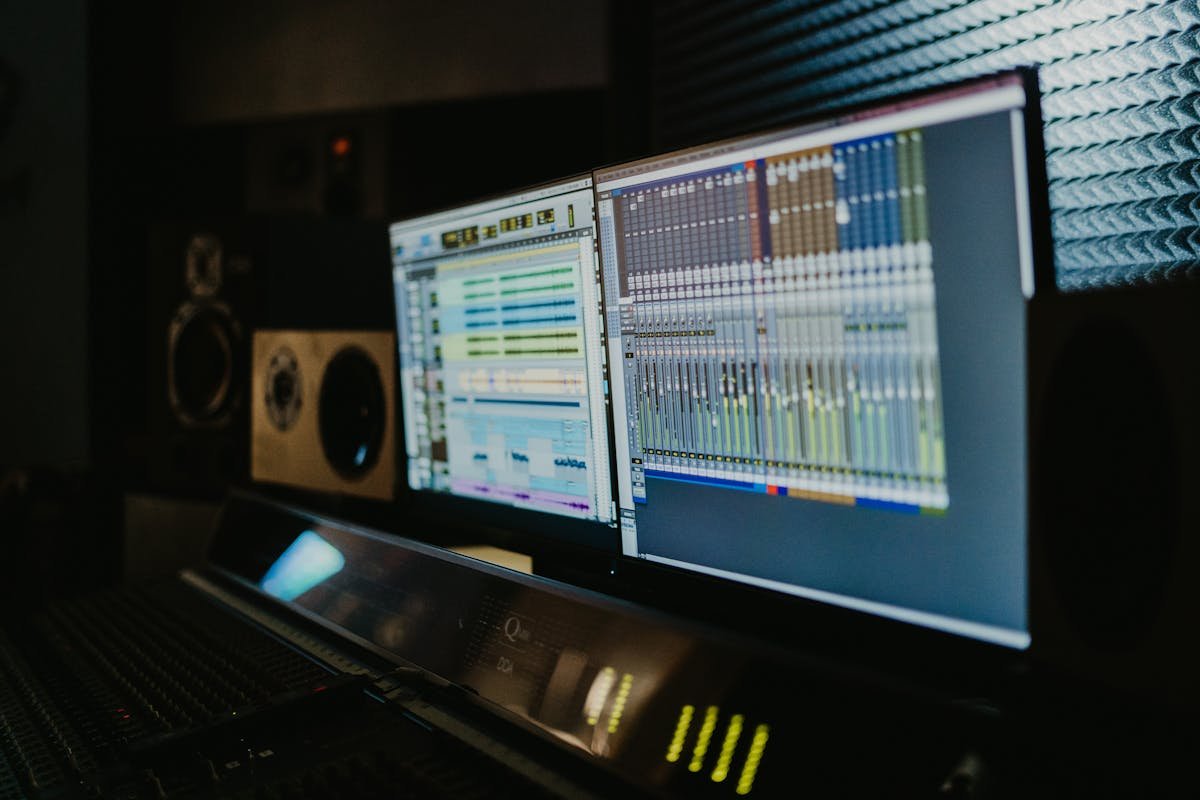
Audio recording software on computer screen in studio - Best call recording software with RECAP

Once you’ve connected your phone to your computer for call recording (using a RECAP S2 audio adapter or similar setup), you need call recording software to actually capture the audio. This guide covers the best free and paid options for Windows and Mac so you can start recording immediately.

Looking to record Zoom, Teams, or Google Meet calls from your computer without triggering the participant notification? See our dedicated guide to recording video calls without announcement.

What to Look For in Call Recording Software

Not every audio recording app is suited for phone calls. Here’s what matters when choosing recording software:

  • Mic/line input recording — must be able to record from an external audio input, not just system audio
  • Real-time monitoring — lets you see audio levels while recording so you can catch problems
  • Voice activation (optional) — auto-start/stop recording when audio is detected, for hands-free operation. See our guide to automatic call recording for detailed setup steps.
  • Standard export formats — MP3, WAV, or M4A for easy sharing and transcription
  • Low CPU usage — shouldn’t slow down your computer while recording in the background

Note that RECAP S2 requires a wired headset to capture both sides of the call, and most modern phones need a compatible adapter (Lightning or USB-C to 3.5mm). Once the hardware is set up, any of the software below will work.

Free Options

1. Audacity (Windows, Mac, Linux)

The gold standard for free call recording software. Audacity is open-source, has been around for 20+ years, and handles call recording extremely well.

Setup for call recording: 1. Go to Audio Setup (top toolbar) and set the input to your microphone/line-in port (where RECAP S2 is connected) 2. Set recording channels to Mono (phone calls are mono audio — stereo wastes space) 3. Click the red Record button when your call starts 4. Click Stop when done 5. Export via File > Export Audio as MP3 or WAV

Voice-activated recording (auto-record): 1. Go to Transport > Transport Options > Sound Activated Recording 2. Set the activation level under Transport > Transport Options > Sound Activation Level (start at -30dB, adjust based on background noise) 3. Audacity will auto-start recording when it detects audio and pause during silence

Pros: – Free and open-source – Extremely reliable – Voice activation for hands-free recording – Supports every audio format – Built-in noise reduction, amplification, and editing tools – Cross-platform (Windows, Mac, Linux)

Cons: – Interface looks dated – No automatic file splitting (long recordings become one large file) – Crashes can lose unsaved work (save frequently, or enable Audacity’s auto-save)

Best for: Most users. If you’re recording calls to a PC, start with Audacity.

Download: audacityteam.org

2. OBS Studio (Windows, Mac, Linux)

OBS is primarily a streaming/screen recording tool, but it works well as an audio recorder and has some features Audacity doesn’t.

Setup for call recording: 1. In Sources, click + and add Audio Input Capture 2. Select your mic/line-in input (where RECAP S2 is connected) 3. Go to Settings > Output > Recording and set format to MKV — OBS can record audio-only tracks within MKV containers, or you can remux to MP4 after recording 4. Click Start Recording during calls

While OBS defaults to video container formats (MKV/MP4), the audio track is easily extracted using the built-in Remux Recordings tool (File > Remux Recordings) or free tools like FFmpeg. You can also configure OBS to capture only the audio input with no video sources, keeping file sizes small.

Pros: – Free and open-source – Can record audio + screen simultaneously (useful for documenting calls with on-screen notes) – Hotkey support for start/stop recording – Automatic file naming with timestamps – Very stable, low CPU usage

Cons: – No built-in voice activation for audio-only recording – Overkill for simple audio recording – Requires extra step to extract audio from container format – No built-in audio editing

Best for: Users who also stream or need screen + audio recording.

Download: obsproject.com

3. Windows Voice Recorder / Sound Recorder (Windows)

The built-in Windows audio recorder. Simple, works, nothing fancy.

Setup: Open Sound Recorder from the Start menu. Select your input device. Click Record.

Pros: – Already installed on Windows – Dead simple – Saves in M4A format

Cons: – No voice activation – No audio level monitoring during recording – No editing tools – Limited export options – No automatic file naming

Best for: Quick, one-off recordings when you don’t want to install anything.

4. QuickTime Player (Mac)

Mac’s built-in option.

Setup: 1. Open QuickTime Player 2. File > New Audio Recording 3. Click the dropdown arrow next to the record button and select your input (RECAP S2 / line-in) 4. Click Record

Pros: – Already installed on every Mac – Clean, simple interface – Exports to M4A and WAV

Cons: – No voice activation – No waveform display during recording – Minimal editing (trim only) – No automatic file splitting or naming

Best for: Mac users who need something quick without installing Audacity.

5. Voice Memos (Mac / iPhone)

If your “recording device” is a second iPhone or iPad (connected to RECAP S2’s output via a Lightning/USB-C mic adapter), Voice Memos is the simplest option.

Pros: – Already on every Apple device – iCloud sync across devices – Simple, one-tap recording

Cons: – No voice activation – No audio level monitoring – Limited editing – Requires the right adapter to get RECAP’s output into the device

Best for: Using a second iPhone/iPad as your recorder.

Paid Options

6. Adobe Audition (Windows, Mac)

Professional audio workstation. Adobe Audition requires a Creative Cloud subscription. Worth it if you’re a journalist, podcaster, or legal professional who records calls daily.

Key advantages over Audacity: – Non-destructive editing – Superior noise reduction (Adaptive Noise Reduction is excellent for cleaning up call audio) – Multi-track recording – Automatic speech alignment – Professional-grade effects and processing

Best for: Professionals who need to edit and clean up recordings regularly.

7. Reaper (Windows, Mac, Linux)

A professional DAW (digital audio workstation) at an indie price. Full-featured, lightweight, and extremely customizable. Reaper offers two license tiers: personal/small-business (revenue under $20K/year) and commercial. Both are one-time purchases with no subscription. See reaper.fm for current pricing.

Key advantages: – One-time purchase (no subscription) – Scripting support for automation (auto-split recordings by silence, auto-name files) – Very low CPU usage – Highly customizable interface and workflow

Best for: Power users who want Audition-level features without a subscription.

Download: reaper.fm

Recommended Settings for Call Recording

Whatever software you use, these settings will give you the best results:

SettingRecommended ValueWhy
Sample rate44,100 HzStandard quality, good for voice
Bit depth16-bitSufficient for phone audio
ChannelsMonoPhone calls are mono; stereo doubles file size for no benefit
Export formatMP3 (128kbps) or WAVMP3 for storage efficiency, WAV for maximum quality
Input gainAdjust until peaks hit -6dB to -3dBPrevents clipping while keeping volume strong

Troubleshooting Audio Levels

  • Audio too quiet? Increase your PC’s microphone input level. See our guide: How to adjust microphone volume on PC
  • Audio distorted or clipping? Lower the input volume or phone call volume. See: How to fix clipping sound
  • Only hearing one side of the call? Check that RECAP S2 is properly connected between the phone and headset. Both sides should come through the same output.

Quick Comparison

SoftwarePriceVoice ActivationAudio EditingEase of UsePlatform
AudacityFreeYesYesMediumWin/Mac/Linux
OBS StudioFreeNoNoMediumWin/Mac/Linux
Sound RecorderFree (built-in)NoNoEasyWindows
QuickTimeFree (built-in)NoTrim onlyEasyMac
Voice MemosFree (built-in)NoTrim onlyEasyMac/iOS
Adobe AuditionSubscriptionNoProfessionalComplexWin/Mac
ReaperOne-time purchaseVia scriptingProfessionalComplexWin/Mac/Linux

Our Recommendation

For most people: Audacity. It’s free, it has voice activation for automatic recording, it handles every audio format, and it has built-in tools to clean up recordings if needed. It’s what we recommend to RECAP S2 customers.

If you need it simpler: Use your OS built-in recorder (Sound Recorder on Windows, QuickTime on Mac). No learning curve.

If you’re a professional: Reaper (one-time purchase for personal use) gives you professional features without a subscription. Adobe Audition (subscription) if you’re already in the Adobe ecosystem.

Frequently Asked Questions

Can I use free software for call recording?

Yes. Audacity is completely free, open-source, and has every feature most people need for recording phone calls on a PC — including voice activation, noise reduction, and export to MP3 or WAV. The built-in recorders on Windows (Sound Recorder) and Mac (QuickTime) also work for basic recording at no cost.

Which software has voice-activated recording?

Audacity is the only free option with built-in voice-activated recording. Enable it under Transport > Transport Options > Sound Activated Recording, and Audacity will automatically start capturing when it hears audio and pause during silence. Reaper can also do this through its scripting system, and Adobe Audition supports it through custom workflows. For a full walkthrough, see our guide to automatically recording every phone call.

What audio format should I save call recordings in?

For most purposes, MP3 at 128kbps is the best balance of quality and file size for phone call audio. A one-hour call will be roughly 55 MB. If you need maximum quality for legal or archival purposes, use WAV (16-bit, 44.1kHz) — the file will be larger (roughly 300 MB per hour) but lossless. Avoid proprietary formats that may not be playable on other devices.

Do I need special software to record phone calls on Mac?

No. QuickTime Player, which comes pre-installed on every Mac, can record audio from an external input like RECAP S2. Just open QuickTime, choose File > New Audio Recording, select your input device, and press Record. For more advanced features like voice activation or audio editing, install Audacity (free) or Reaper (one-time purchase).

Can I record both sides of a phone call with Audacity?

Yes, but Audacity alone only records what comes through your computer’s audio input. To capture both sides of a phone call, you need hardware like the RECAP S2 that taps into the audio between your phone and headset and sends it to your PC. Without a hardware adapter, Audacity can only record your microphone — not the other caller.


Need to connect your phone to your PC for recording?

Get RECAP S2 — $99 captures both sides of phone calls and outputs to any recording device or computer. No apps, no batteries, no subscriptions.

See also: How to record phone calls on your computer for the full hardware setup guide.