
RECAP Capture
Record computer calls without a meeting bot.
Use RECAP Capture to record Zoom, Google Meet, Microsoft Teams, Slack, FaceTime, and system audio on your Mac.
No meeting bot · no virtual audio driver · records every app + system audio.
Free to download with a RECAP account · $99/yr for the full license — no auto-renew.
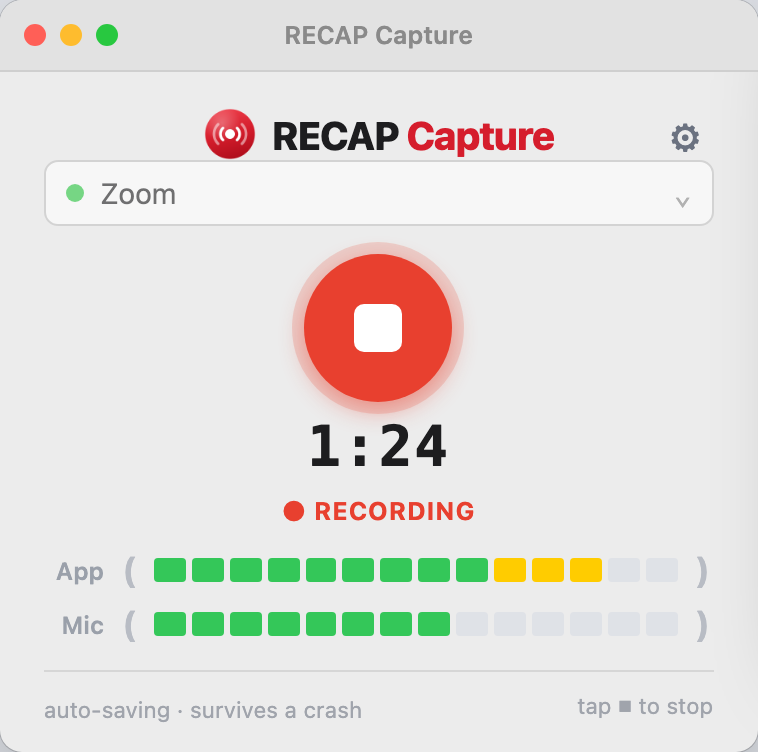
Bot-free call recording from RECAP — on your device, since 2013.
What RECAP Capture does
Records call audio and your mic
Capture the meeting app’s audio plus your microphone in one recording.
No meeting bot
Nothing joins the call. No waiting-room bot. No extra participant.
No virtual audio driver
Record without installing a virtual audio device or building a multi-output setup.
Saves locally
Keep the recording on your device. Upload to RECAP only when you want transcription, summaries, search, or Q&A.
Edit before you upload
Trim and export with RECAP Audio Editor.
Crash-safe
Audio streams to disk as you record — a crash or dead battery never loses the take.
Why no meeting bot, no virtual audio driver?
Meeting-app recorders are built for the host and the platform. RECAP Capture records your own Mac audio and microphone — no bot in the participant list, no waiting-room bot, and no virtual audio device to install. Save a local file and decide what to do with it.
After recording, choose what happens next.
Edit the recording
Trim, review, and export with RECAP Audio Editor. Open RECAP Audio Editor
Upload to RECAP
Turn recordings into transcripts, summaries, search, and Q&A. Upload to RECAP
Recording phone calls?
Use RECAP Audio Adapter S2 for phone calls and separate-device recording. See RECAP Audio Adapter S2
RECAP Capture — $99/year
Record computer calls with RECAP Capture for Mac.
- RECAP Capture for Mac
- RECAP Audio Editor
- Local recording and export
- One year of access and updates
One-time charge for one year. No auto-renew, no surprise billing.
Not ready to buy? Download RECAP Capture for Mac and try it first.
Transcription, summaries, search, and Q&A are available with a RECAP plan.
Questions
No. RECAP Capture records from your computer. It does not send a bot into your meeting.
No. RECAP Capture is designed to record without a virtual audio driver.
No. You can use RECAP Capture just to record, trim, and export. Transcripts, summaries, search, and Q&A are available separately with a RECAP plan.
RECAP Capture runs on Mac and requires macOS 14.2 or newer. Download it with a free RECAP account.
Buy RECAP Capture, and you’ll receive an activation key by email. Open RECAP Capture and paste the key once. After activation, the app can record offline.
RECAP Capture is for computer calls. For phone calls or separate-device recording, use RECAP Audio Adapter S2.
Always follow the consent and recording laws that apply to your calls. Laws vary by state and country. Recordings are saved on your device; if you upload them to RECAP, they are covered by the RECAP privacy policy and terms.